

Gryphon Guardian Mesh WiFi Router and Parental Control System with Content Filters and Advanced Cyber Security
$99.00
Related Products


Product description


 Fast Internet for Everyone
Gryphon delivers high-speed internet to every user in your home, even when they’re ALL online at the same time working, surfing, streaming, & gaming.
 Support More Connected Devices
WiFi engineered to securely connect the busiest networks (even with more than 100 devices) without speed lags, buffering, or dropped connections.
 WiFi Coverage Everywhere
Upgrade your current router from your ISP with Gryphon and blanket every corner of your home with faster, safer, and more reliable WiFi.
 Easy, Hassle-Free Installation
Simple enough for ANYONE to set up within minutes using the Gryphon app. Works with all internet services. Live phone support available 7 days/ week.

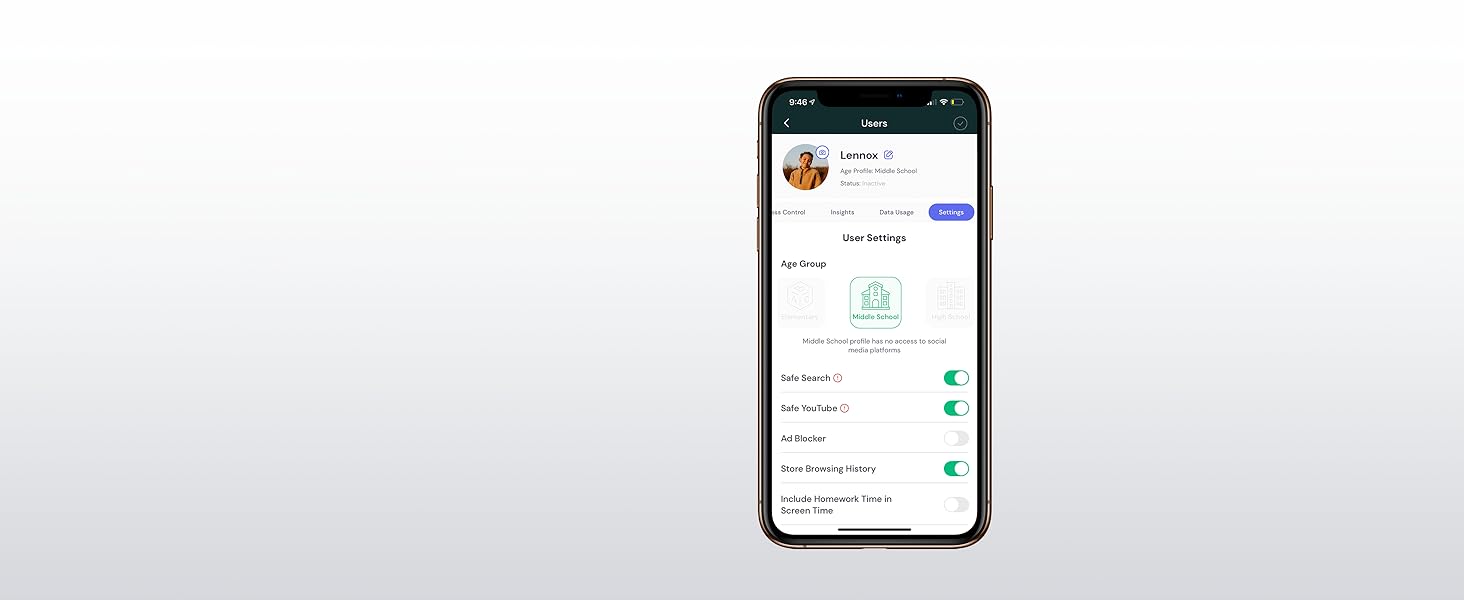 Content Filtering
Protect young users by blocking access to adult websites and inappropriate content.
 Manage Screen Time
Set daily screen time limits and create schedules for homework, bedtime, and internet breaks.
 View Web Browsing
View browsing history and manage access to websites and website categories.
 Usage Insights
Monitor how your family uses the internet, time spent online, and data usage for every device.
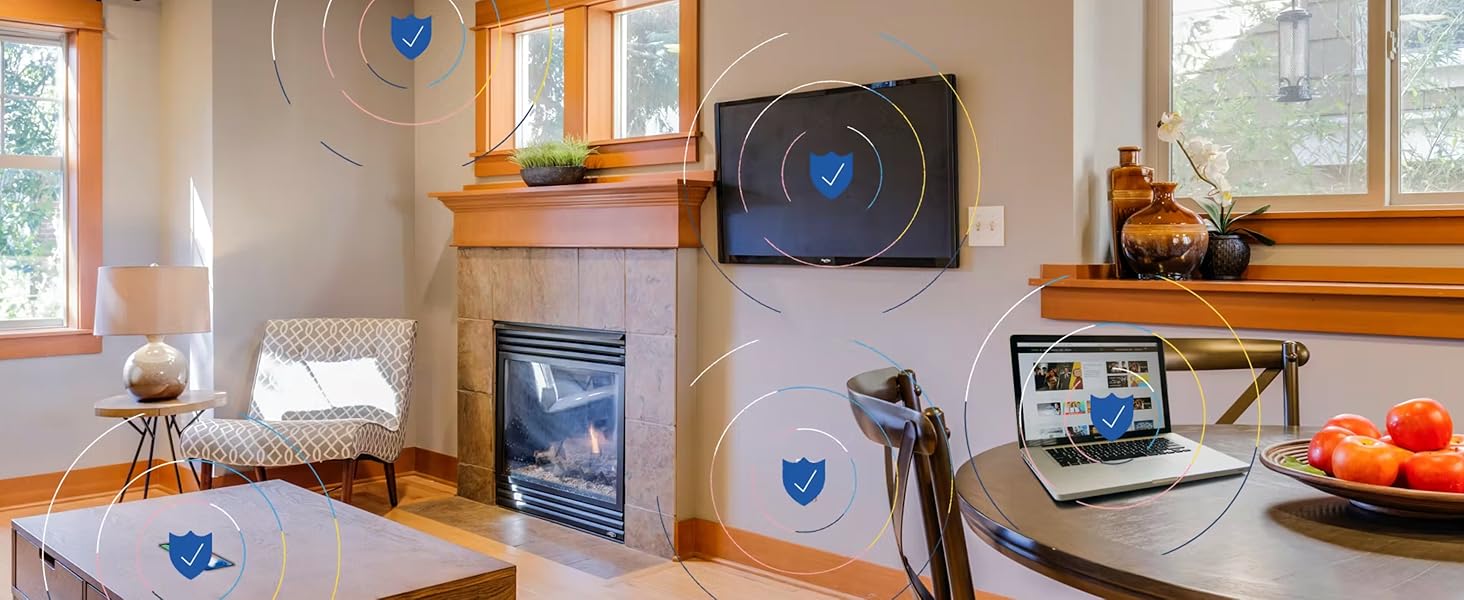 Premium Protection
Protect every user and device in your home from hackers and personal privacy threats.
1 Content Filtering 2 Manage Screen Time 3 View Web Browsing 4 Usage Insights 5 Premium Protection
Choose the Right Gryphon Mesh WiFi for Your Home
WiFi Technology
WiFi 6, AX4300 / Tri-Band
WiFi Technology
AC3000 / Tri-Band
WiFi Technology
AC1200 / Dual-Band
Coverage
Up to 3,000 sqft per unit
Coverage
Up to 3,000 sqft per unit
Coverage
Up to 1,800 sqft per unit
Ethernet Ports
x1 WAN port, x1 Gigabit LAN port w/ ethernet backhaul
Ethernet Ports
x1 WAN port, x3 Gigabit LAN ports w/ ethernet backhaul
Ethernet Ports
x1 WAN port, x1 Gigabit LAN port w/ ethernet backhaul
Recommended for:
Highest performance and throughput, latest WiFi 6 technology
Recommended for:
Larger homes with many devices
Recommended for:
Smaller homes, great value
AFFORDABLE CONNECTIVITY & SECURITY – Beef up your mesh network’s coverage, add extra security to your system, and get access to advanced parental controls with the super flexible and inexpensive Gryphon Guardian. Use independently for small spaces or add onto your existing home network. Compatible only with other Guardians.
COMPREHENSIVE PARENTAL CONTROLS – Schedule screen time, monitor online searches and create a safe Internet experience by managing all your family’s smart devices and apps in one central location. Use Gryphon Guardian as an independent mesh router with flexible parental control features or as an add-on to your existing network
WIFI WHERE YOU NEED IT – Enjoy reliable connectivity throughout your whole apartment or improve WiFi speeds in rooms far from your modem as simultaneous AC1200 dual-band radios and 2×2 MU-MIMO deliver up to 1,500 sq. ft. of coverage for each Guardian (coverage may vary depending on home construction)
NEXT-GENERATION FIREWALL – Protect every device in your home with this WiFi mesh system’s modern malware and ransomware protection, 24/7 intelligent intrusion detection to guard against hackers, and automatic protection from phishing scams
SIMPLE SETUP & SMARTPHONE CONTROL – The Gryphon Connect app provides you with a single solution for managing your WiFi network, parental controls, device access, and app use
7 reviews for Gryphon Guardian Mesh WiFi Router and Parental Control System with Content Filters and Advanced Cyber Security
Add a review

$99.00
Justin Time –
What I’ve learned…
So I’ve got teenagers. The teenagers drove me to this router. Prior to I had a Linksys with no complaints, followed by a Netgear Nighthawk, which was an outstanding peice of hardware, and the Netgear certainly had some parental controls, but it was a little clunky.As a level set I’m more than willing to fiddle with any electronic to get it to work. I have loads of patience and am the IT support for the house. In truth I like it that way and nerding out with the router is not a chore to me.So I buy the Gryphon and am pretty happy with the router. This also coincided with moving to a new home. Said new home is good sized and has 2 floors. The house is roughly 4300 Sq ft. My office ends up being right next to the router and I really did not have any performance complaints. My family though… Ugh. Complaints galore, and I had written some of it off as a new internet provider when we moved.As I said I continue to fiddle and change things hoping to get a better experience for all. What was frustrating is that the router seemed to put out the signal I needed at the edges of the house and while the speeds were not as fast as next to the router they were acceptable when not being heavily taxed.I finally came to the conclusion that I should add a mesh repeater as the system worked especially up where I did most of my work, but the complaints did not subside so my work was not done.I added one repeater which was quite easy. There wasnt a lot of fussing just scan a qr code on the bottom of the repeater in the app and you’re off and running. After I added one it was a bit better….but Still getting complaints.So what’s a guy gonna do? I decide to just go deeper down the rabbit hole.Adding a second and… Still complaints… Then eventually a third as I had grown tired of the complaining. I also came to the conclusion after speed checking every corner of the house and swapping around positions of the routers for several days in my spare time. Let me offer this peice of info also…. Sony PS4s have TERRIBLE WIFI ANTENNAS. I could not figure out why I couldn’t get their machines to pull the speeds I could when testing on my phone…. Standing right next to the dang thing and I’m getting 200mbps more download speed. After some research I figured out that the PS4 unless sitting almost on top of the router is going to struggle to pull reasonable speeds. Do yourself a favor and just run an ethernet cable if you’re in that position, or reserve yourself that you’re going to have to add repeaters close to the PS4. That’s free advice and it took me a long time to figure that one out.So besides all that I finally came to the conclusion is that this setup does not have great wifi signal out of the box, and you have supplement with the mesh system to unlock true performance.So after all my fussing what kind of speed am I getting? Cloat to the main unit I can pull 500mbps down and 450mbps up. Those aren’t typos either. The hardware is legit after it’s weak antennas are overcome. In the far corners of the house and yard I can pull roughly 100 mbps down and 125 mbps up. That compares to what it was before of 20ish mbps down and 30 mbps up. It’s made a big difference. Lots of whining has gone away and now everyone can do anything they want and not worry about everyone else. Everyone can Zoom at the same time, while playing video games, streaming 4k videos, and uploading selfies to social media.So all that withstanding, what about the real reason I bought it? The parental controls are slick and simple! Want the kids to do their homework? Great just kill all the wifi to only their devices all at the push of a button.Want the wifi shutoff at midnight so they don’t watch TV all night? Cool. Just set it up that way for that child.Kids going to “questionable” sites. No problem BLOCKED at the push of a button.When I was having complaints about the internet I had rounded up anything extra I could think of that would suck up bandwidth (Wyze Cams, Amazon Echoes, smart switches, light bulbs etc) nd assigned them all to a group in the app as a user. So when complaints started I could add bandwidth quickly with the push of a button by just suspending internet to those items.Assign static IPs with ease. We have a printer that loves to not marry up with the computers. Set that bad boy as static and never worry about it again. Assign whatever name you like to devices. In my house we have close to 100 wifi items to be assigned. Being able to identify by name (and it makes sense to me) is a God send. I was able to catch one of the kids in a lie because someone came over and hooked into our wifi and you can set it to ask permission to join. Mine is not set that way, but when all your devices are hooked up and suddenly a new one shows up… It’s pretty obvious.Want 2.4ghz and 5ghz as a choice? Sure no problem. Want to not have to think about it and let the routers do the work. No problem you can do that too.The system really provides a lot of flexibility and performance once I finally got it all dialed in. It did end up being more expensive than what I could have done with a different setup, but I would not have had such a slick interface to deal with the kids. I am now very happy. The kids have been unhappy since it came in the front door….and I don’t care! Lol. I hope you can make your teens unhappy soon too.
Rob Gillen –
Very good router with great security features
Let me first state that we’ve had this router for about 8 months now, and it’s certainly one of the better routers that I’ve had. Some of its best features are its range, its security features, its user profiles, and its parental controls. I keep it in the basement laundry room, which is about the center of our split-level house, both horizontally and vertically. I’ve had no problem getting connections anywhere inside the house, and I do pretty well with most of the yard outside of the house.I do very much appreciate that the developers of this router have made security a first-class citizen, and it frees me from being overly concerned about such things. Few of us really have the time or the knowledge (even those of us that do IT-type work) to tackle such chores, and who wants to put up with that drudgery anyway? ok! maybe some of us!But it does give me some sense of safety, especially when I know that not everyone using the internet is super-savvy about such things.It’s very convenient to be able to control the router from the phone (or tablet), but the inability to do the same from a web interface can sometimes feel limiting; especially, when you’re first setting things up, and you have to spend time with virtual keyboards. The app previously allowed only one person to administer the router. Logging into the app on another mobile device would cause the initial admin device to logout. Fortunately, this has been changed so that a secondary admin can be defined. This allows my wife to take care of stuff if I’m away or busy with other things.With the hardware seeming quite capable, there are some things with the software where I’d like to see improvements. I know some of these have been recognized by the company, and some changes have been promised. I’m still waiting for many of them. Here are my gripes:* Clearing many notifications in the mobile app can be a pain. Sometimes, it would be nice to be able to see the content of the notification without having to go into the app, drill into it, and click a button to clear it. Most of these are “Malware Detected” warnings. These almost always seem to be triggered by a fetch of a blacklisted URL when my kids are playing games and visiting game sites. Most are mysterious in the sense that we don’t usually find them in the list of sites (in the app) visited by the user (children only). The notification also doesn’t display the URL, so it’s hard to analyze anything about them — I suspect they are probably advertising/tracking links or images that are not necessarily from the sites being directly visited. It would be nice if the notifications were handled in a smarter way (machine learning FTW!) or maybe just better categorized as incidental and either ignored or grouped for easier dismissal.* As mentioned above, the app saves a list of the sites visited by child users. Only the hostname is saved with an image of the home web page and a timestamp. That’s ok, but it would be nice to be able to review all and entire URLs visited. Maybe too much info? Dunno. Some sites have a lot more places to explore, and having the option of viewing it gives power to the user.* The option to save browsing history is present for child user profiles, but for some reason the same option is not permitted to adult or guest users. I can only guess that this was done for privacy reasons, but my personal opinion is that I should be allowed to see internet usage within my household. I guess you can control this by selecting the appropriate age-group profile to use.* I *wish* that parental controls had finer-grained day/time control, and maybe even the ability to create custom-named schedules and one-off changes to them. As it is, there are two schedules: one for bedtime and one for homework. Schedules can be turned off or on for each day have have only one start time and one end time to apply to all of them. The coarse handling of scheduling makes it inconvenient when you want to use different times for the weekend or if you want to permit multiple periods during the day. My older TP-Link router had its granularity at the hour-level, and it allowed me to freely schedule many usage periods throughout the week (it’s weakness was that it couldn’t create independent schedules for different users like the Gryphon can). The perfect scheduler would be similar to the one that I get in modern calendaring apps where I can click on a calendar grid cell, drag it around, lengthen or shorten it to adjust the permissible “online” period and even click on the online block to customize it further.* Being able to add to the “Apps Control” list for user profiles would be a bonus. I’m not sure what it would take. The current list is ok and affords some control within the bedtime and homework schedules.There are probably other nice-to-haves that I’ve thought of while owning the Gryphon router. Overall, I think I’d still pick this router over many of the others, but with its age and its price still in the premium range, I’d expect less expensive similar functionality from competitors growing more common.
NatalieMM –
I bought this router four months ago for better parental controls and have been very happy with it. One router is enough to cover my 1600-foot bungalow up to the end of my driveway and backyard, no problem. Parental controls are much easier to customize than on my old D-Link. Also, recently my internet slowed down after a power outage. After determining that the problem was with the Gryphon, I got on the chat with them on their website and they solved my problem with a firmware update within 15 minutes. Great customer service!
Pavel Kozlov –
Purchased this router about a month ago. The router was easy to connect and easy to use. I added the same password as my old wi-fi and all devices just connected to it seamlessly. I only had to identify them and assign to users. The app works great. The filtering of google search and youtube search also works very well. This is exactly what I needed to manage internet connection for the kids. Highly recommend to everyone.The strength of the connection is overall better than my previous router and the wifi modem. Although I expected a slightly better connection, I guess my thick walls and non-central location of the router affect it. I guess it all depends on your setup. A central location would give better coverage, but it is impossible in my case. I may have to buy the second unit eventually, but for now, I connected my old D-link wi-fi extender to get the full coverage of the remote corners of the house (about 150sqm).Overall – I do recommend this unit to others. It is easy to use and it does what it supposed to do – protect your kids and your house online while allowing you to stay in charge of the family.
richard Van Dam –
It is easy to use and does as advertised
Graham Legg –
Wrong power supply for Australia.Set up help is too simplified – doesn’t explain clearly the best set up to piggy back on your existing Wifi router – I had to deduce that from some hints.Associated App could be improvedBut actually does the Parental Control well.
Sid –
Excellent router for parenting control. However the, plug provided did not work in the UAE and had to be returned